This small program is created by software called AutoHotKey. If you want to try using the original script or add characters, you can download it here. Note that you will need to install AutoHotKey to get this script to work. That is not necessary if you download the exe file above.
Then you can add any relevant information. For example:
#intro We can understand the Four Noble Truths if we have concentration.
#topics concentration, Four Noble Truths, happiness
#similes mountain
#names Sariputta Arahant
#furtherReading * See also SN 56.11
#explanation
#questionForReflection What do you think it's like to live this way?
Topics, People & Similes
NOTE: If you are not familiar with our tags, you can see a list of all tags:
NOTE: Topics, People and similes are case sensitive! So Meditation and meditation will be two different topics.
Special note for people tags: For all monks and nuns who became Arahants, please put the personal name first followed by “Arahant”. For example: Sāriputta Arahant. For other people like kings and queens. put their personal name first then king or queen. WHY? Because then they are all listed alphabetically by name. Also, see these guidelines.
Intros *
Intros are a sentence that will draw someone into reading the sutta. Sometimes they are a question that the sutta will answer. Sometimes they say briefly what the sutta is about. Some can start with “The Supreme Buddha teaches about …” but they shouldn’t all start that way. Best thing is to look at the intros as they appear on any of the table of contents pages, for example, DN, MN, Khp, Ud, Itv, Snp, Vv, Pv.
For very short suttas it can be difficult to give an intro. Just create something and the bhantes will check.
Further Reading
These are suttas that are related to the sutta you are preparing. Most suttas will not have a further reading section.
If the sutta for further reading actually exists on the website, you can add in the code like this:
Most suttas won’t have any questions for reflection.
Excerpt *
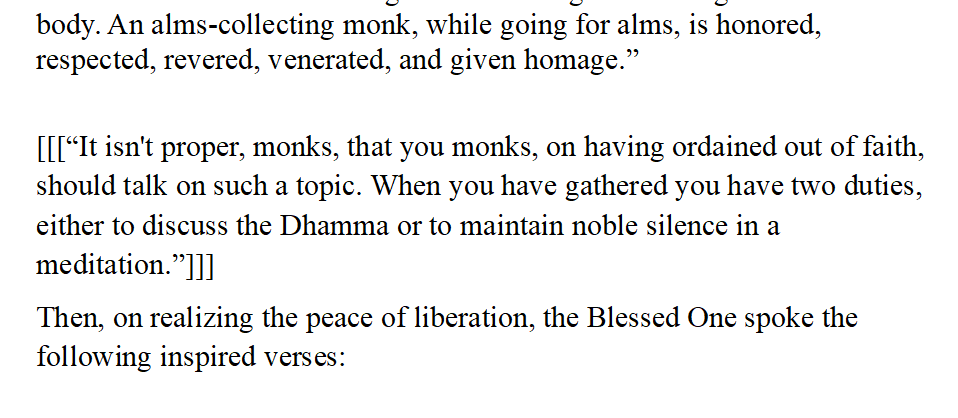
An excerpt is a line from the sutta that gives a good idea what the sutta is about. It should be short. When you find it, put it in [[[triple brackets]]]. Include punctuation.
If you can’t decide, then skip this step.
Verses
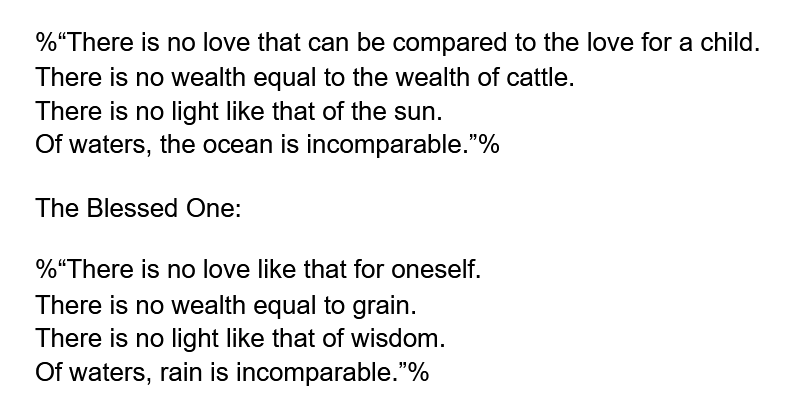
Each individual verse must be enclosed with %% symbols like this:
Smart Quotes & Ellipses *
Make sure that the quotation marks are curving towards the text. Also make sure that triple dots are the real elipses character (…)
If you are working in Google Docs, then add the addon “Text Cleaner” in Google Docs. Then select the text to correct and click as follows:
Footnotes *
In general, we want to avoid text in (parentheses). If the sentence can be read without the text in the parentheses, then please turn it into a footnote.
Simplly place, then put footnote tags around it:
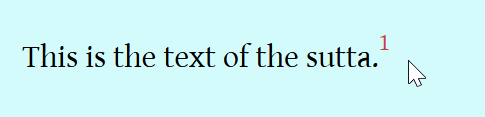
This is the text of the sutta.[footnote]This is my footnote.[/footnote]
And it will end up looking like this:
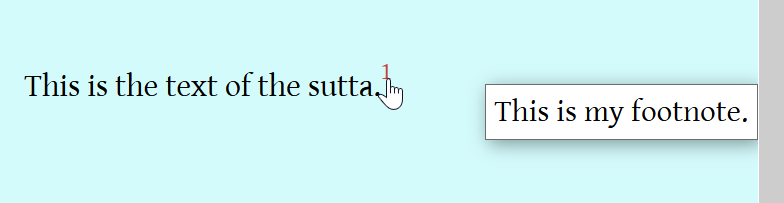
And when they click on the number the footnote pops up:
Avoid using semicolons. Instead, simply break into two sentences. We can use semicolons in complex lists (i.e. lists that contain items that contain comas).
Avoid using colons when introducing speech. For example never say
Then the Blessed one said to them: “Monks, there are two…”
Please notice there are different sheets (tabs at the bottom) with different types of issues.
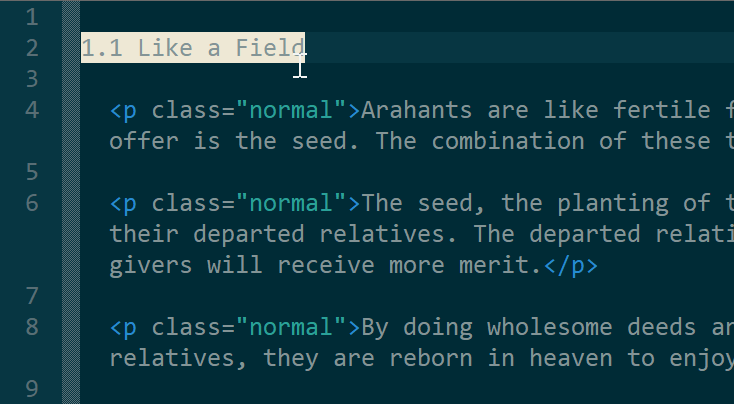
Sutta titles need to all be contained on a single line. This will require some work to get the file ready.
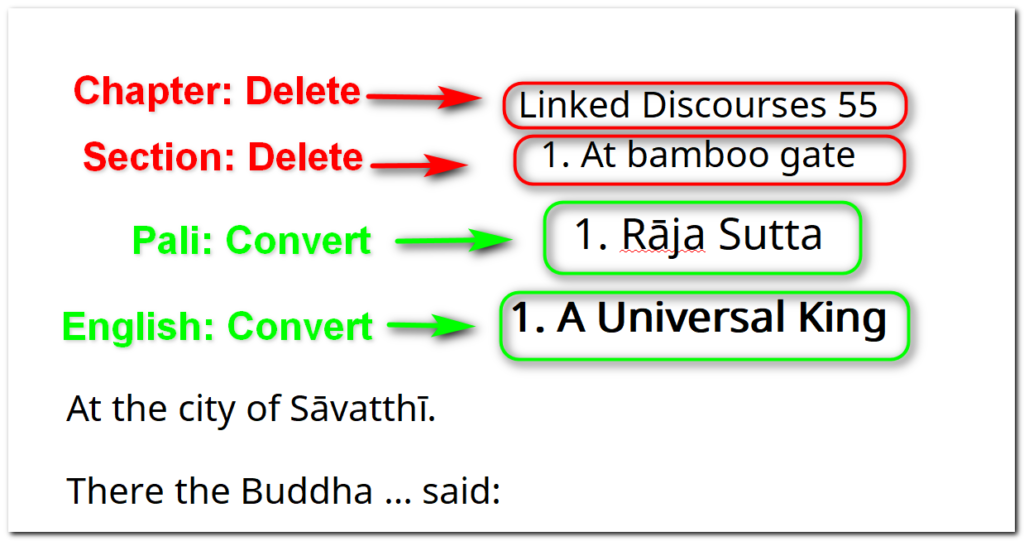
First, we need to delete the chapter and section titles. We are not using them. You may be able to remove them through search and replace. But BE CAREFUL! Many times the section title is the same as a sutta title and we don’t want to delete those.
Then we need to combine the Pali line and the English line.
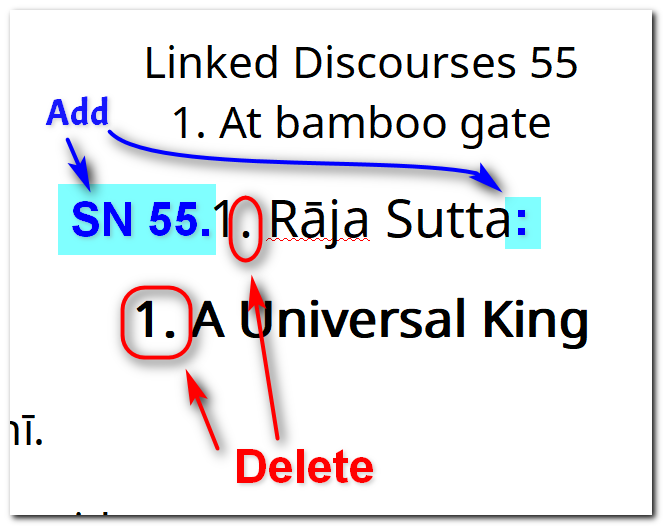
Each title needs to start with the letter code for the citation. In the example below, it is SN. For the SN and AN, next will come the chapter number. In this example it is 55. Then we remove the period after the citation, add a colon after the Pali name, remove the number on the English line and then combine the lines together. Presto!
Then this is what we end up with:
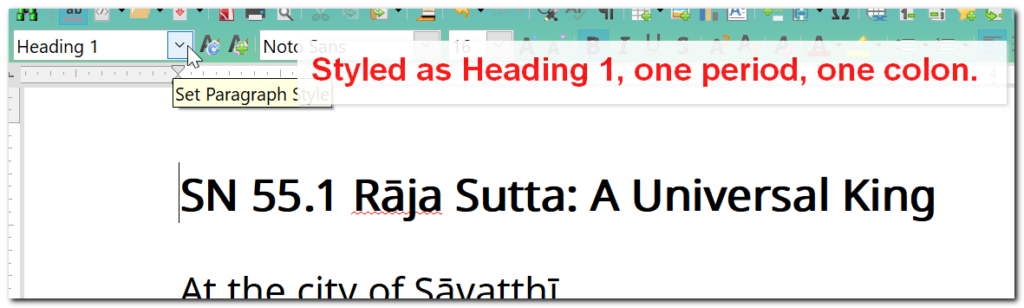
Then finally, we need to mark this line as Heading 1 in the word processing software. This may work differently in different software.
So it is like this:
Letter abbreviation
Space
Chapter number (for SN & AN)
Period (for SN & AN)
Sutta number
Space
Pali title
Colon
Space
English title
AND mark as heading 1
Fixing Quotation Marks
The SuttaCentral translations use non-standard quotation mark styles, so we need to fix this. The rule that they are breaking is:
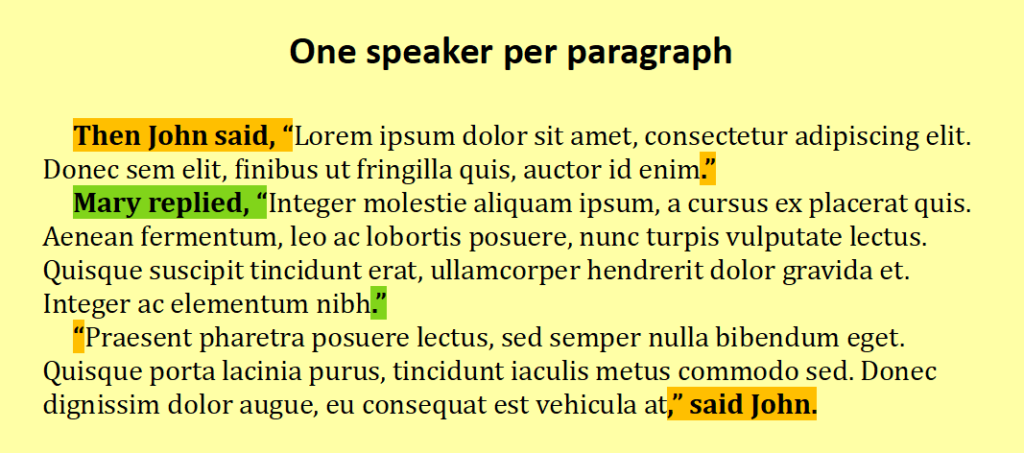
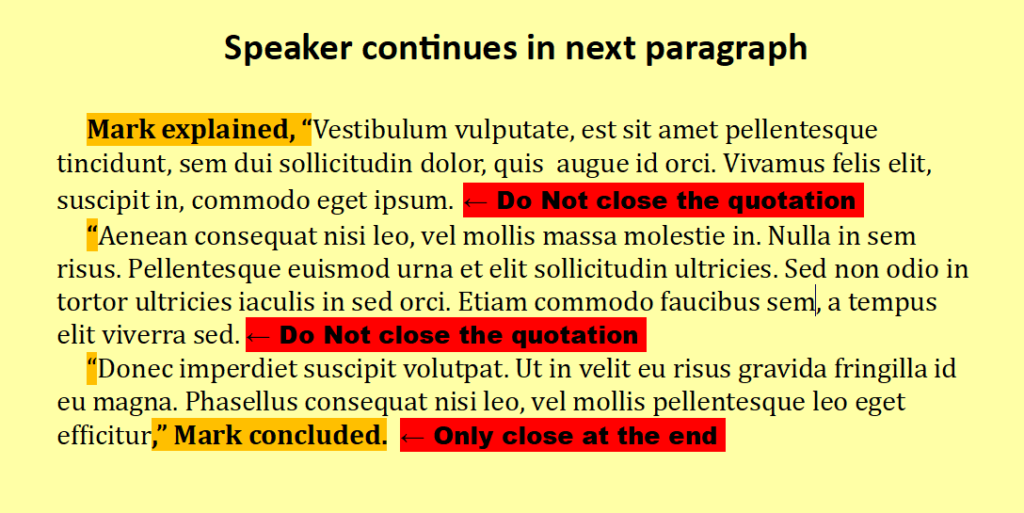
If the same speaker continues from paragraph 1 to paragraph 2, do not put a close quote at the end of paragraph 1.
Here is an example where the speaker is different for each paragraph:
Here is an example where the same speaker continues through three paragraphs:
This is extremely common in the suttas, because an entire sutta could involve only the Supreme Buddha speaking.
Here is a page from the Middle Length Discourses where you can see paragraphs starting with an open-quote mark, but none of the paragraphs end with one. That’s because it’s all the Buddha talking.
If you have any doubts, please ask.
Nested quotation marks
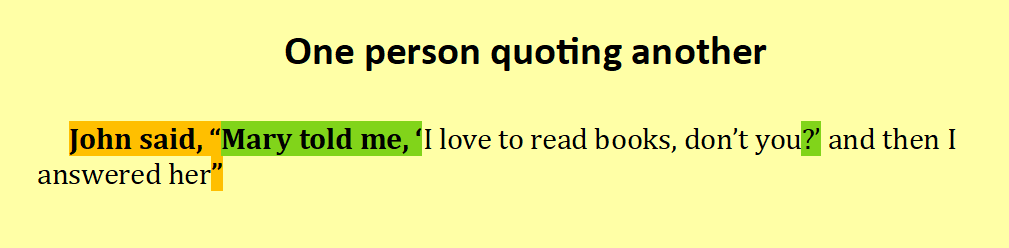
As you are fixing the quotation marks according to the above rule, you will notice that sometimes the Buddha is actually quoting someone when a new paragraph starts. You will know this because the paragraph starts with a single open quotation mark. When there is a quotation within a quotation, the quotation inside uses single quote marks:
This can get complicated, because there are times when there is a quotation within a quotation within a quotation. In that case they just alternate between double and single
“… ‘… “… ‘…’ …” …’ …”
Tricky!! When in doubt, ask. As a general rule, there will never be a situation where a paragraph starts with a single open quote. In that situation there will always have been someone reporting this speech, therefore there needs to be a double quote in front of it.
NOTE: Do not put a space between double and single quotation marks. It’s true that it will just look like three single marks. Don’t worry.
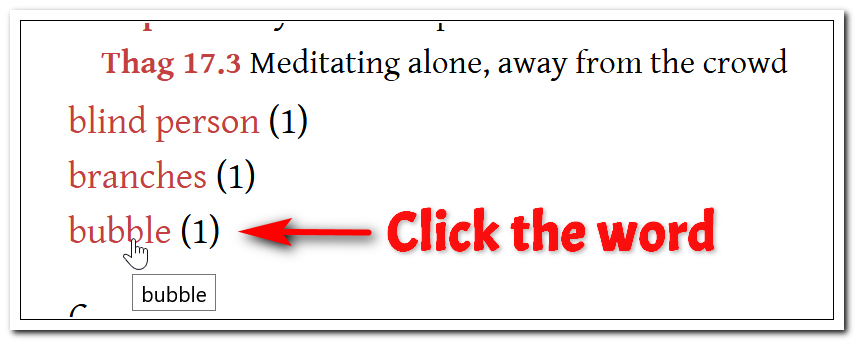
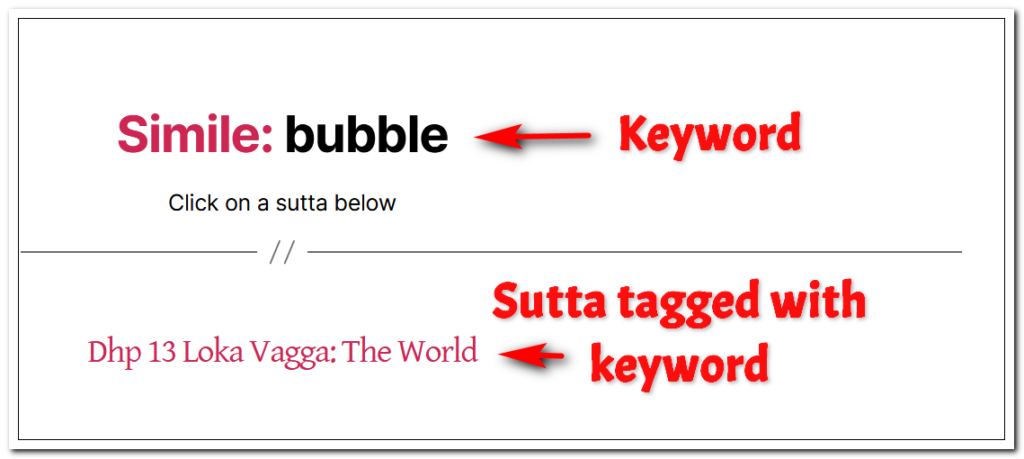
This will take you to what is called the archive page. For “bubble” the archive page url is suttafriends.org/simile/bubble/
This page will have the simile keyword at the top and a list of the suttas that have been tagged with it. In this case there is only one:
Click on the sutta opening it in a new tab.
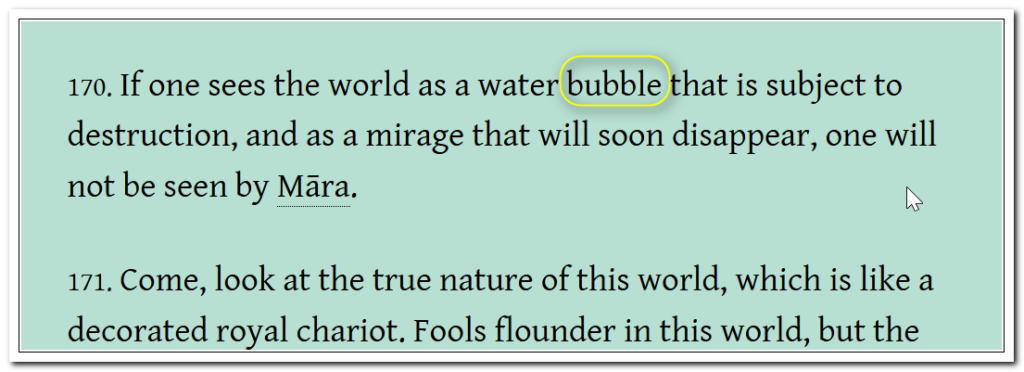
Find the simile in that sutta
In this situation, it is the world that is being described by calling it like a bubble. The quality they both share is that they are subject to destruction.
First we need to write the citation. In this situation it is
Dhp v170
Then we need a description. For this, we have to mention the world and that it is unstable. Keep the descriptions short but meaningful. People should know what the simile is about by reading the description.
Dhp v170 The world is unstable
Next we have to find the link to the exact spot of the simile. For numbered verses it simple. We take the url for the page and add #v170 because it is verse 170.
suttafriends.org/sutta/dhp13/#v170
If there is no verse number, then an anchor has to be added to the page.
NOTE: The steps below can only be followed if you have editing access. If you don’t have that, then simply list
Keyword (bubble)
Citation and description (Dhp v170 The world is unstable)
URL (suttafriends.org/sutta/dhp13/#v170)
and send it to be reviewd and entered.
Add an anchor to the page
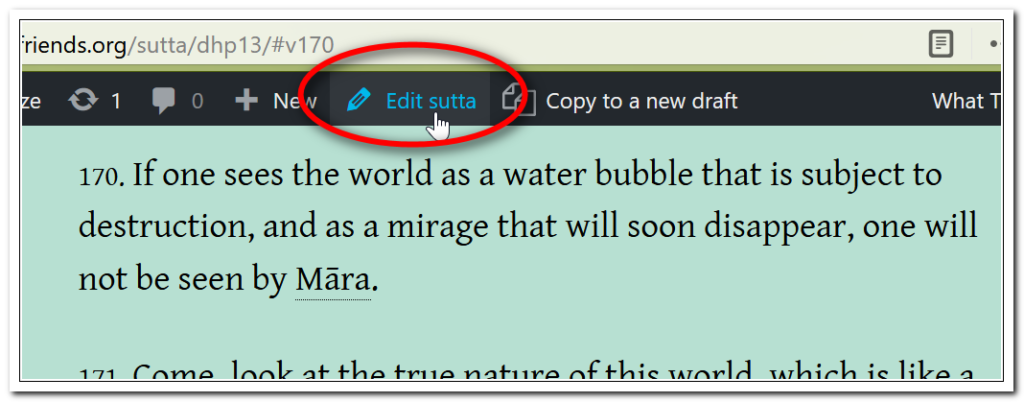
When you are logged into your account, click on “Edit Sutta” for the page you need to add an anchor to.
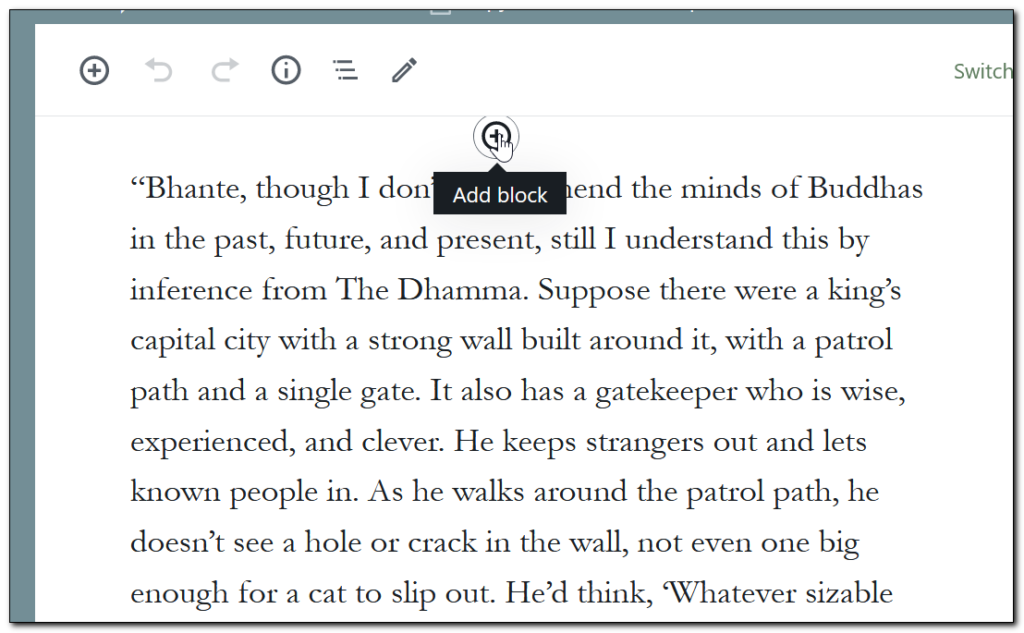
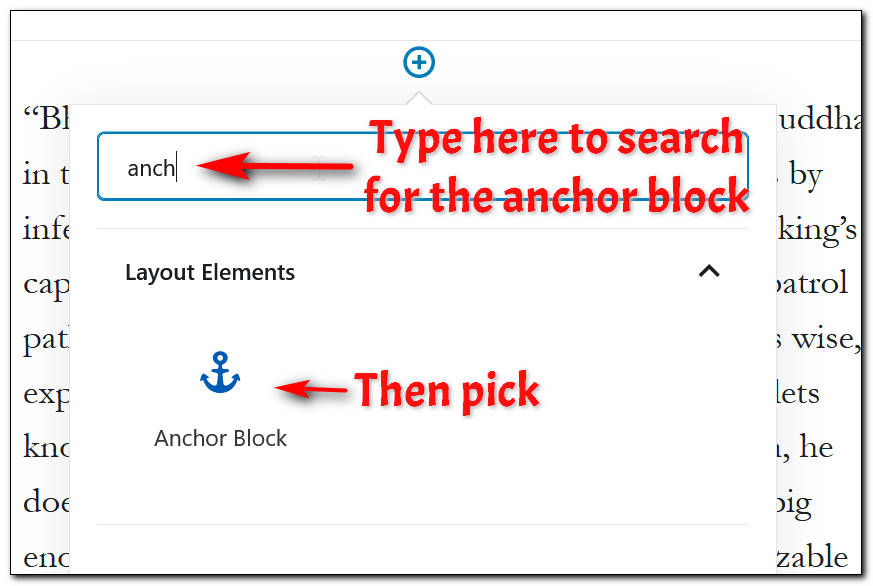
Once you are in the editor, find the paragraph you want to link to and click on the + button above it.
Then start to type the name of the anchor block in the search bar. Then pick the block.
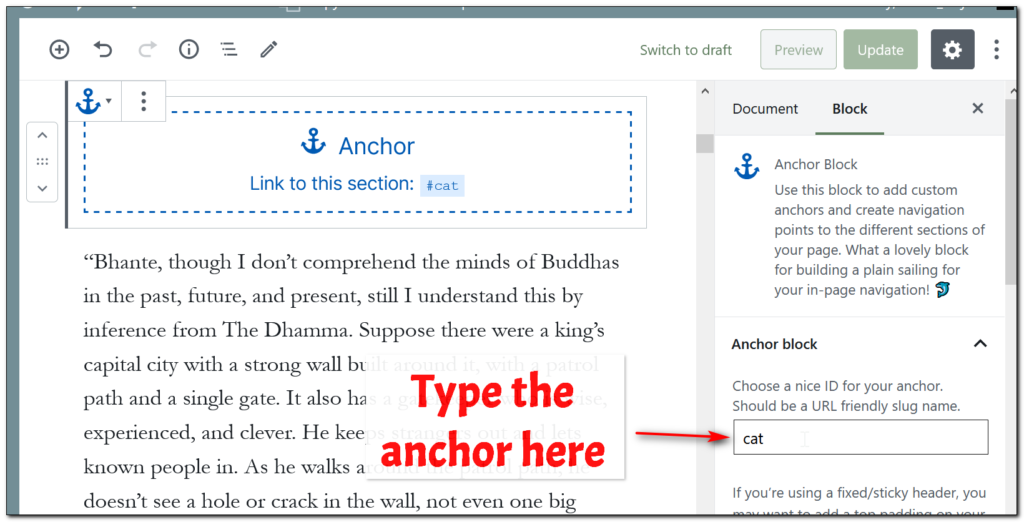
Then type in the name of the anchor. It should be the same as the index word for the simile. If it is a two word anchor, put a hyphen between the words.
If there are going to be more than one index item (in the example below we would also index for “gatekeeper”) only put one anchor and use for all.
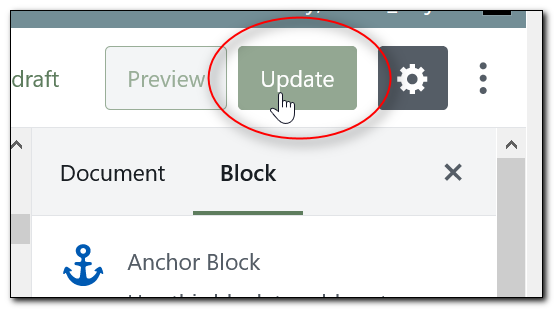
Then click Update.
So the url for the cat simile in this sutta would be
suttafriends.org/sutta/dn28/#cat
Adding the index item to the archive page
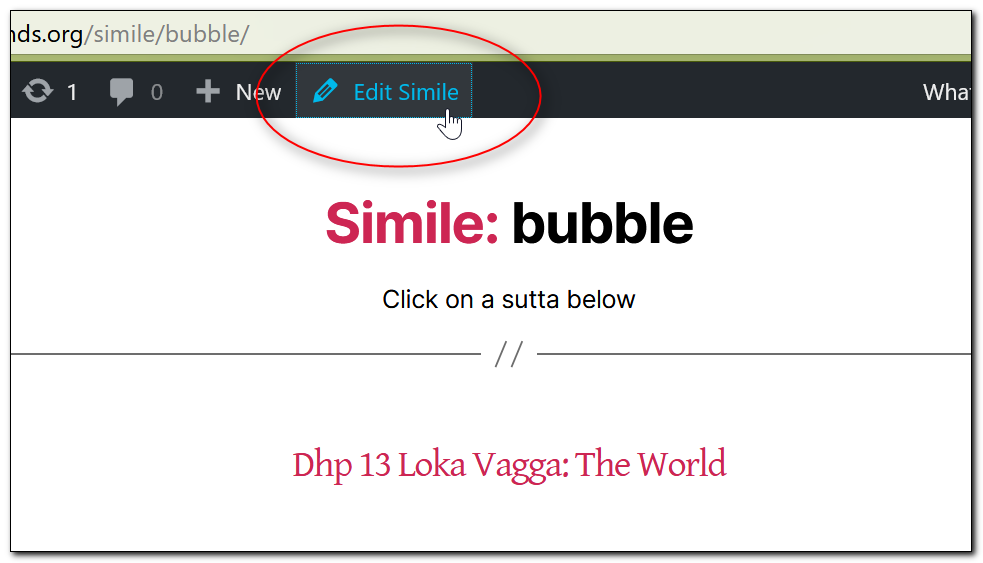
Next we need to edit the tag itself. When you are on the archive page (in the bubble example the url is suttafriends.org/simile/bubble/) click
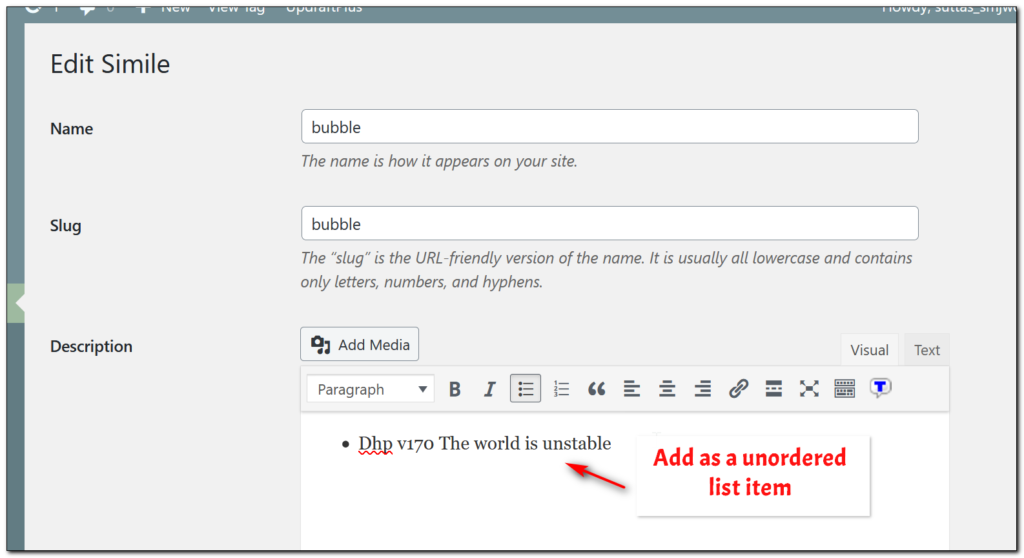
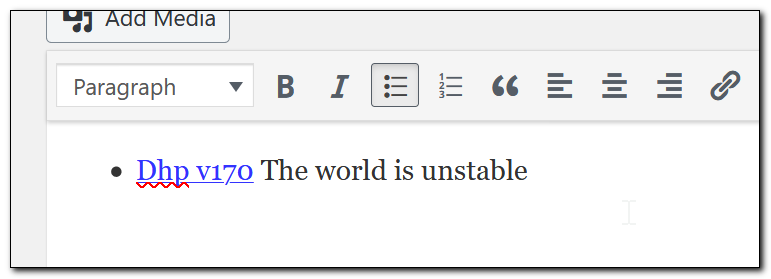
Now we will add the index item in the description of the simile tag. We style them as unordered lists.
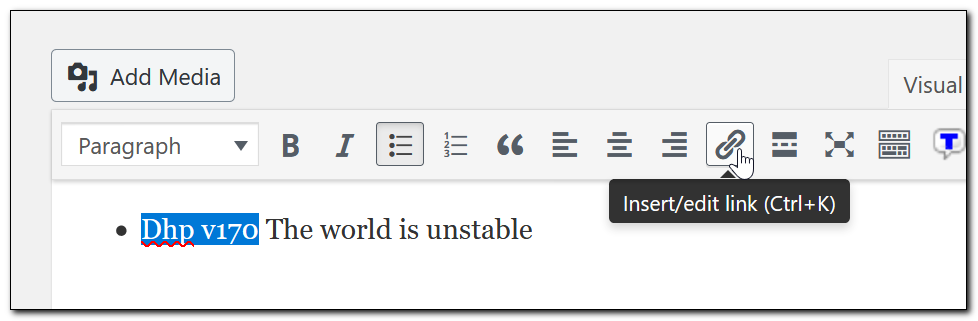
Then select the citation and click the add link icon
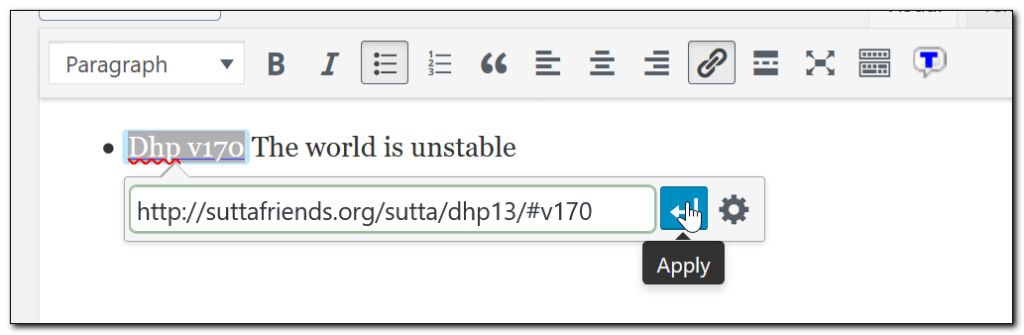
Then paste the link, making sure to use the anchor. Click “Apply.”
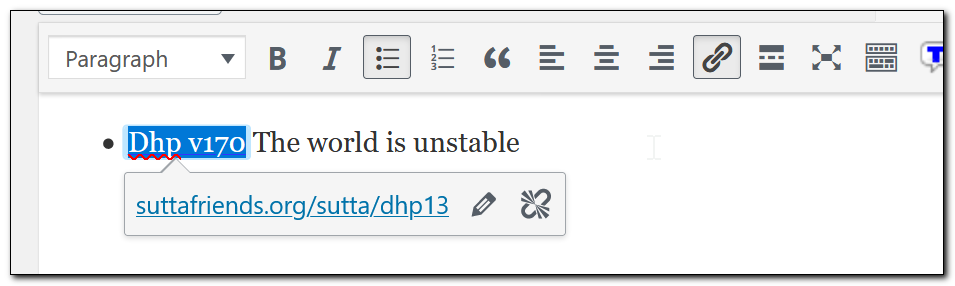
Then it will look like this:
When you click on a blank space, the citation will be blue and underlined.
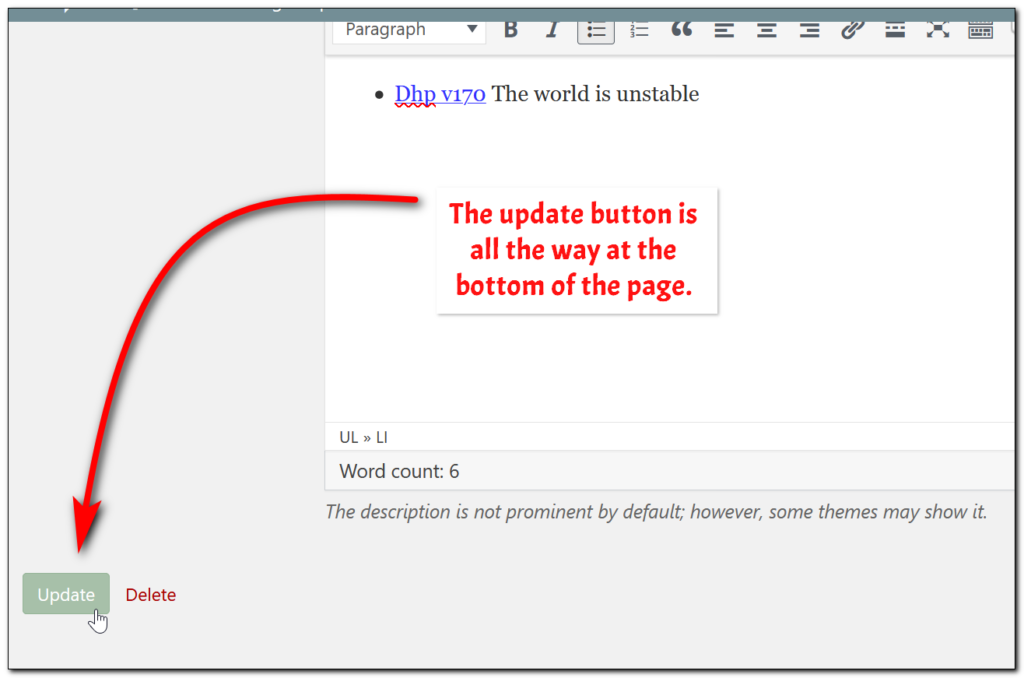
Then finally we have to click “Done” at the very bottom of the screen:
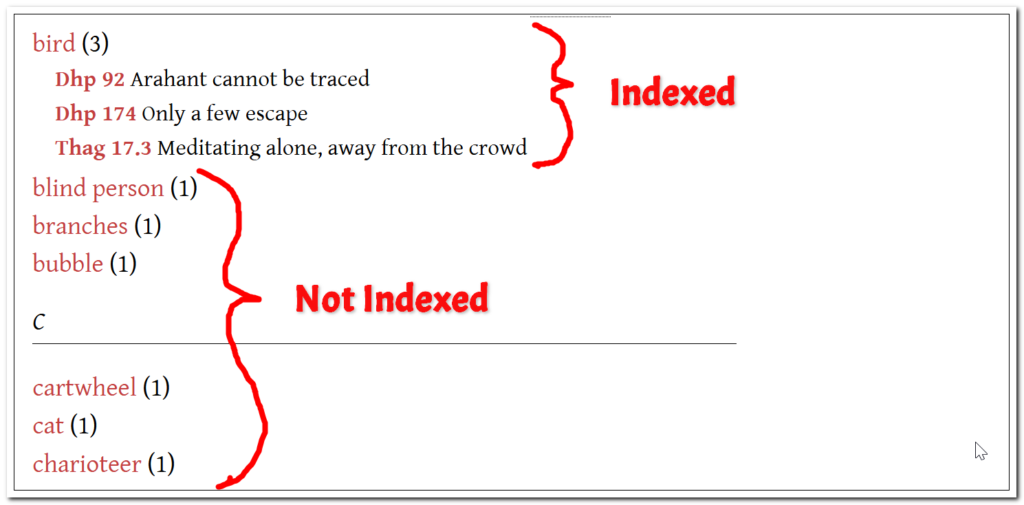
What we DO NOT index
We are only indexing similes that illustrate a Dhamma point. For example, we will not tag or index these:
bamboo https://suttafriends.org/sutta/pv1-11/ Our children are now very happy because they practiced generosity, but we are suffering like withered bamboo reeds.
bird call https://suttafriends.org/sutta/dn30/ is as sweet as the bird kuraweeka’s call
https://suttafriends.org/sutta/thag21-1/ His voice is sweet like the sound of the myna bird.
The Therigatha verses of Arahant Ambapālī will not be indexed as similes because they are describing physical features, not Dhamma points.
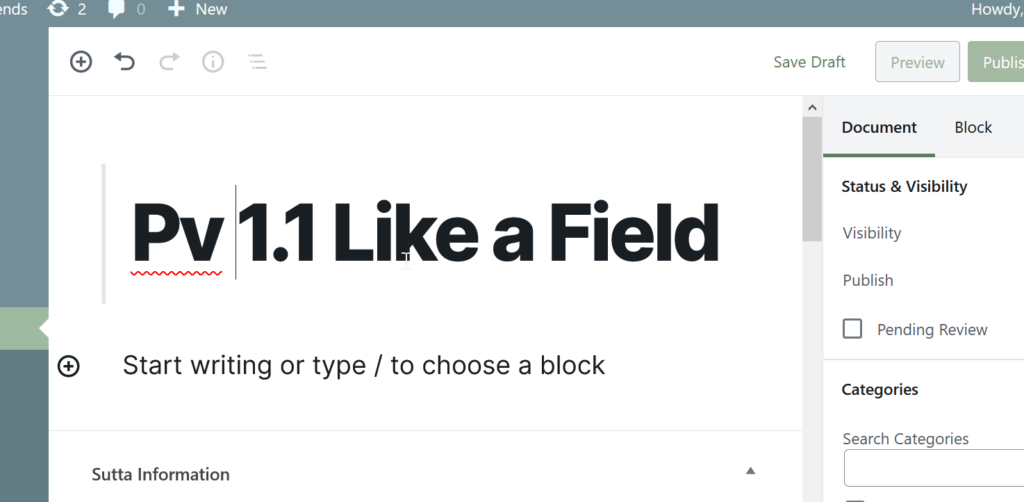
Now open one of the text files starting from the last one. Copy the title and paste it into the title of the page.
You will need to add the abbreviation to the title:
Creating and pasting the html block
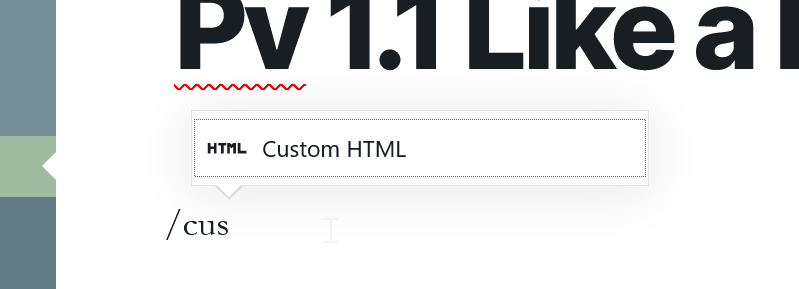
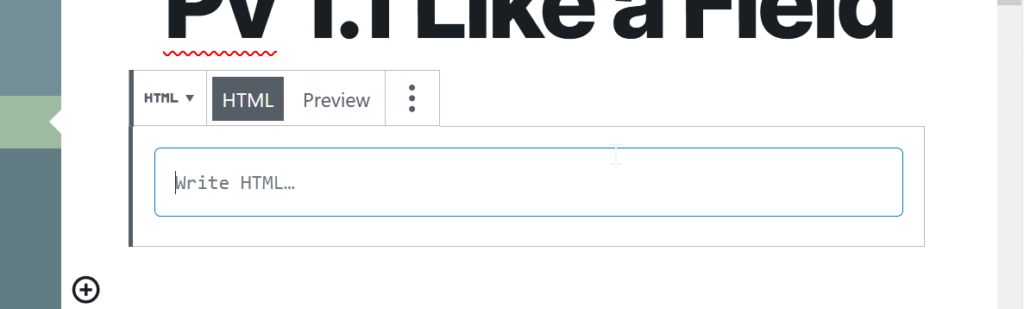
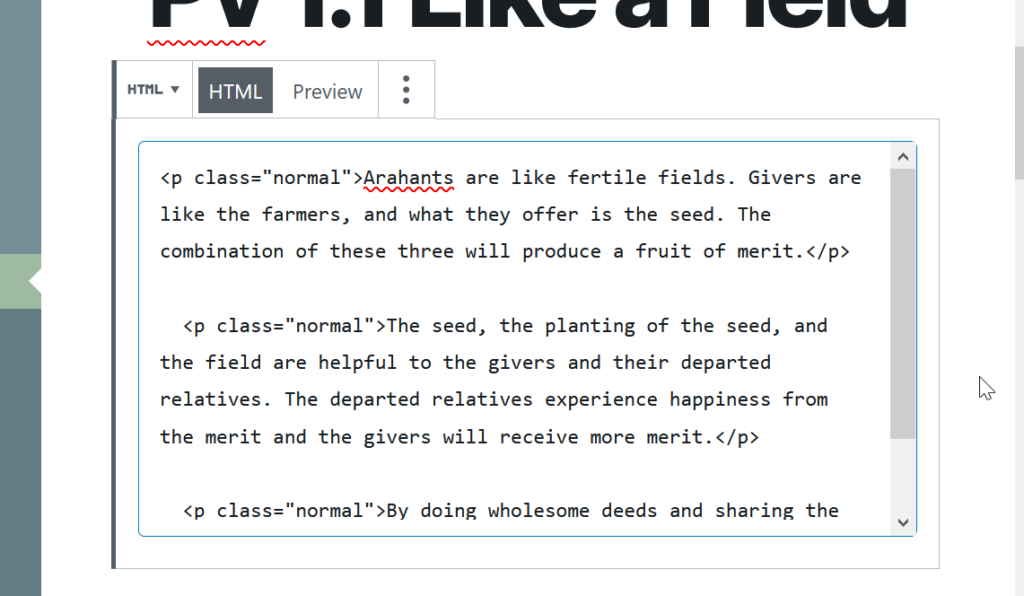
Then click in the area that says “Start writing or type / to choose a block.” Type /custom and the suggested block with be “Custom Html.” Simply hit Enter once this pops up.
This will give you the HTML block that looks like this:
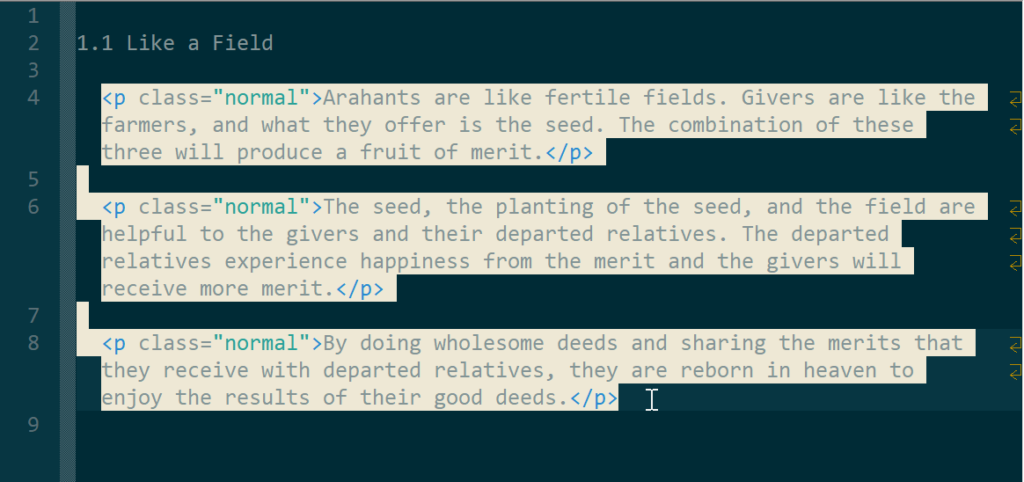
Copy the html from the text file:
Should look like this:
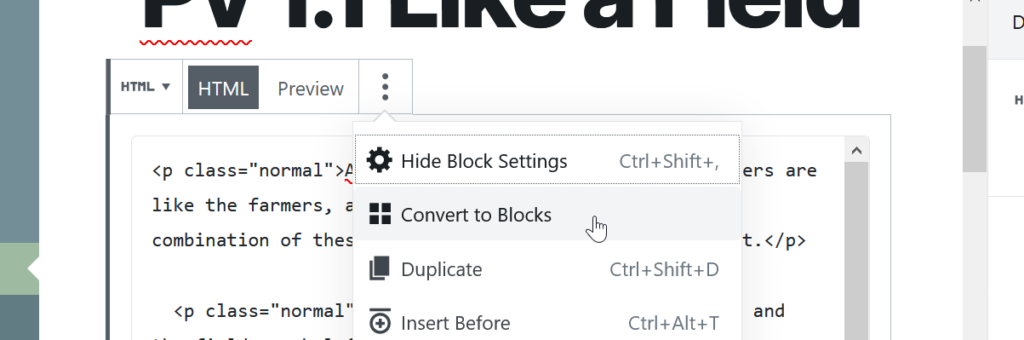
Convert to blocks
Next, we need to convert this to true blocks. Click the ⋮ and select “Convert to Blocks”
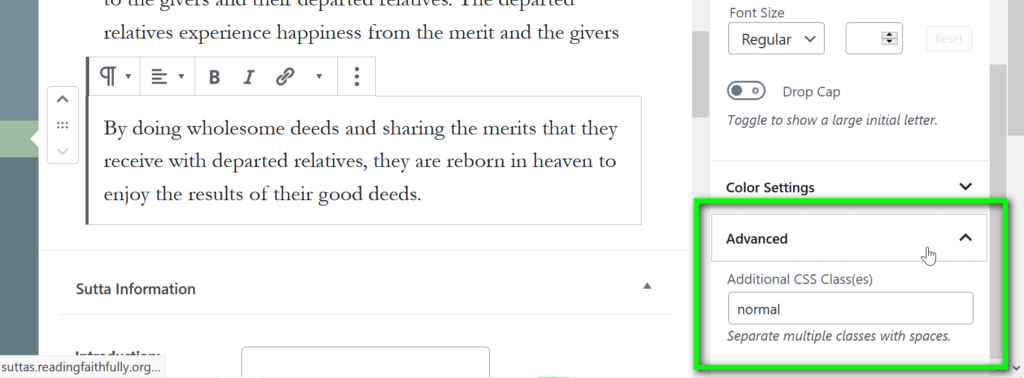
NOTE: The reason we do this is so that the paragraph classes are imported correctly. You don’t need to do anything for this to work, but here you can see what I am talking about. For each block there is an Advanced setting. The class ends up here if you follow the instructions properly.
Click “Save Draft”
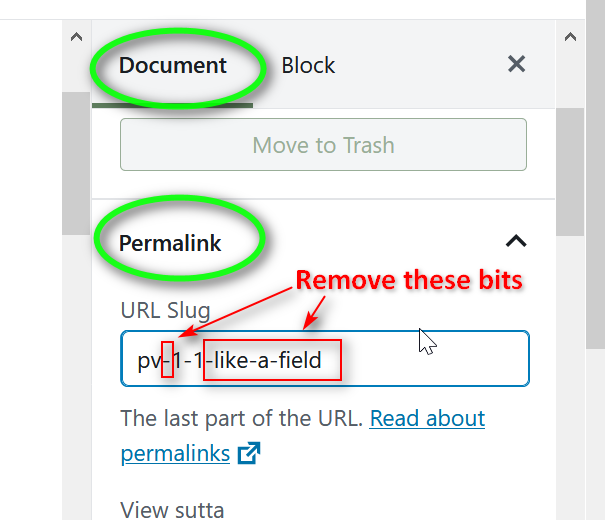
Fixing permalink
Now we need to fix the permalink. Make sure in the right sidebar that Document is selected. Then go to Permalink. We want to remove the dash between the citation and the first number. Then we want to remove the dash and words after that last number. In this example, the permalink should be pv1-1
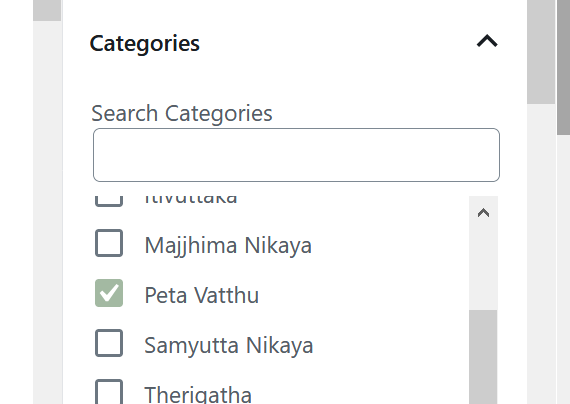
Next, look for the Categories section and select the proper category.
Tags
Tags
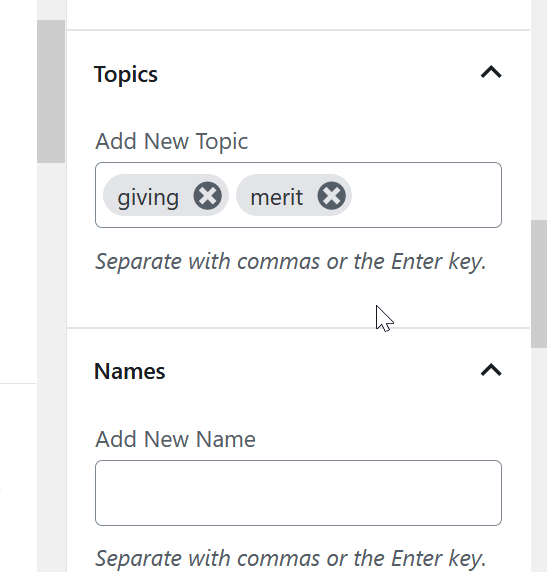
Next come the tags. There are three custom tag sections: Topics, Names, and Similes. (We don’t actually use the real Tag field) Take a moment to read the sutta and see if you can find some topic terms to use. Try to see if there are already tags we are using by checking on the Topic List Page. Bhantes will check, so just do your best. NOTE: If every sutta in a collection could have the same tag, then don’t use. For example, it’s not helpful for all the suttas in Petavatthu to be tagged with “ghost.”
Rule of Thumb: If a topic has more than ten suttas, only use that tag if the sutta gives special information on that topic or somehow seems very relevant. If your not sure, then it probably isn’t.
Please review the Hot Topics page so you can see the topics that are
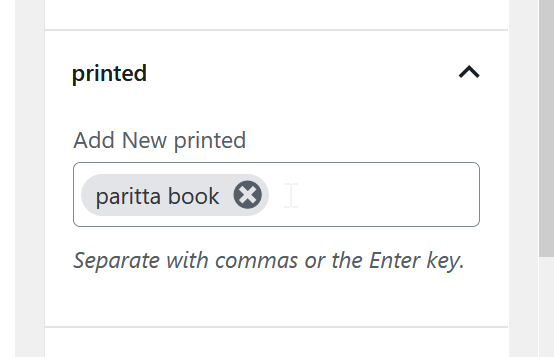
Is there a print book?
In the “Printed” section, enter the tag for the name of the book this sutta is printed in. Not all suttas will have this tag. Refer to the list of print book tags here: https://suttafriends.org/wp-admin/edit-tags.php?taxonomy=printed&post_type=sutta
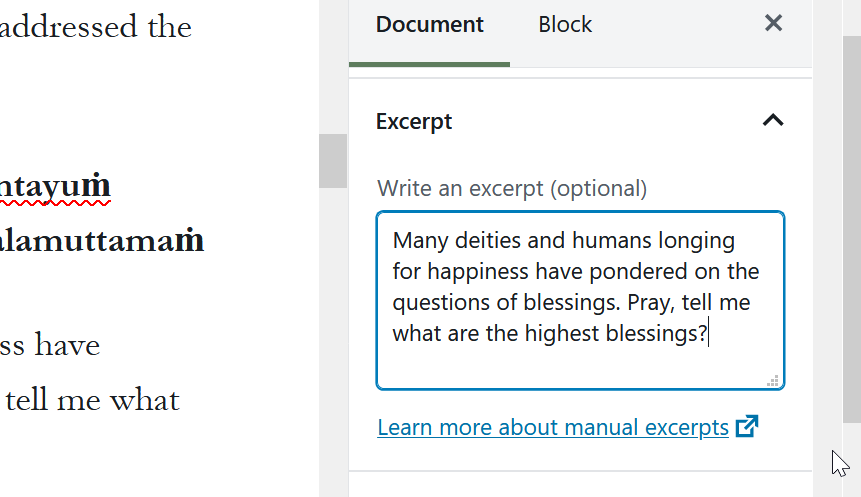
Exerpt
Pick one sentence (or two if they are in a row) that is: 1) independently meaningful 2) significant 3) different from surrounding suttas
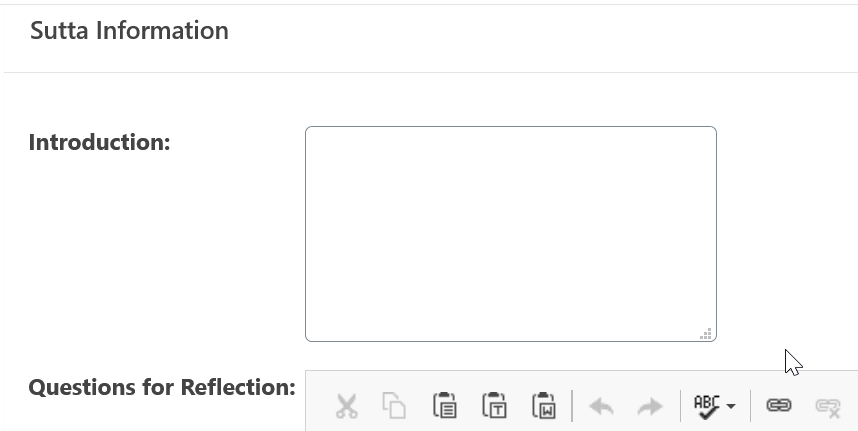
Sutta Information
Intro text
Next, in the main column, scroll down to the Sutta Information section. If you can write a one line introduction, great! But don’t worry if you can’t. Feel free to skip.
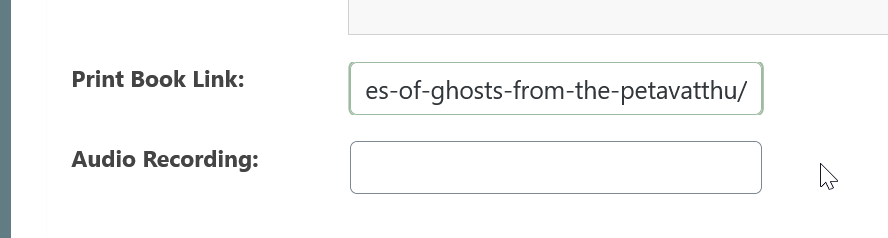
Printed Book Link
Finally, at the very bottom, look for the Print Book Link field. Use the links on this page: https://suttafriends.org/books-from-mahamegha/
That’s it!!! Click publish! Then tell the Bhantes about the pages you have added so they can check. You may want to view the finished page on the front end.